How to Use a VR Headset on PC

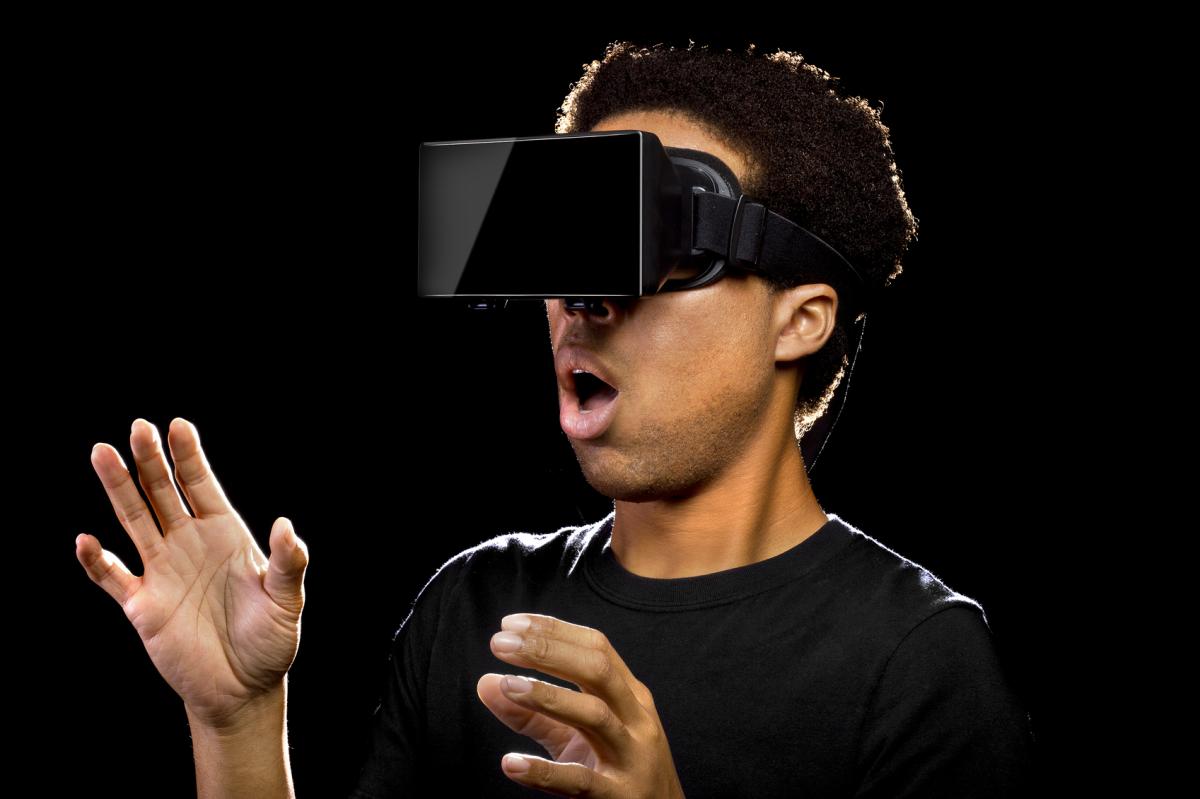
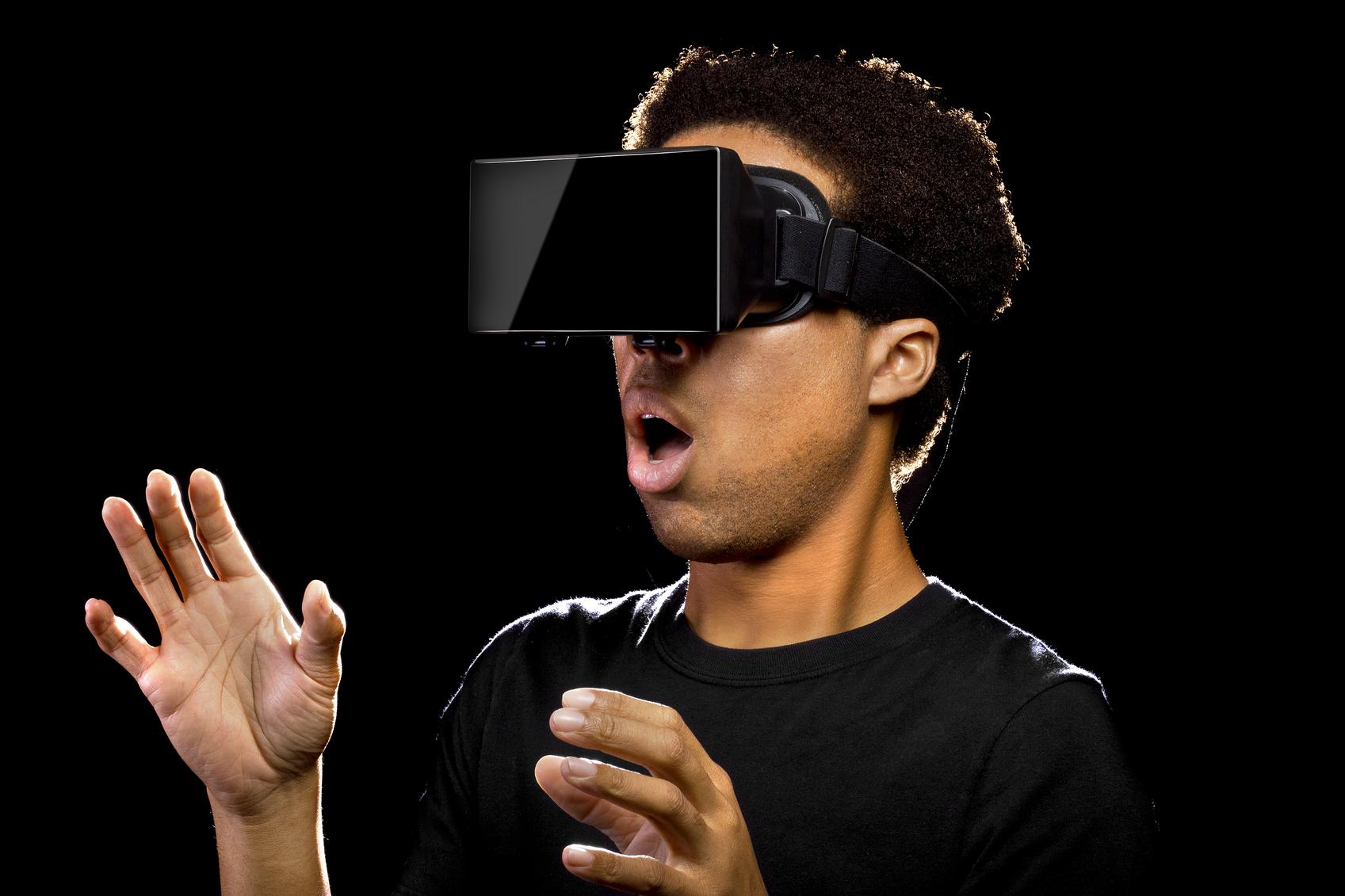
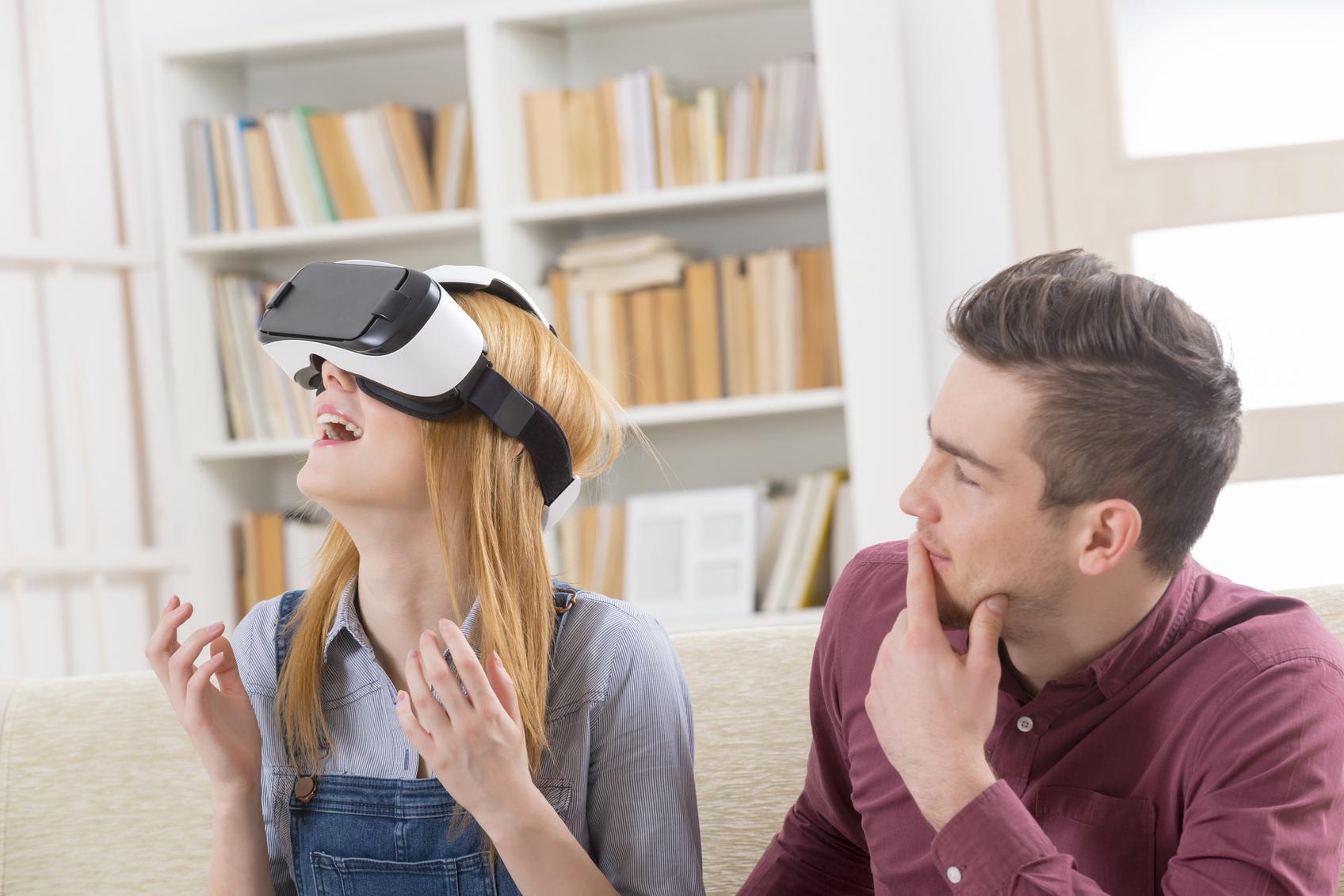
The way you play games or watch movies will never be the same after you have tried virtual reality (VR) technology. As a result of advanced computer technology, the ability to live a 3D experience is at the hands of many people. This technology replicates the environment and immerses the user into a sensory experience where every smell, touch and sound will seem real. With a VR headset you are now able to play a game from the comfort of your home but like nothing you have experienced before.
In this OneHowTo article we detail how to use a VR headset on PC.
Steps to follow:
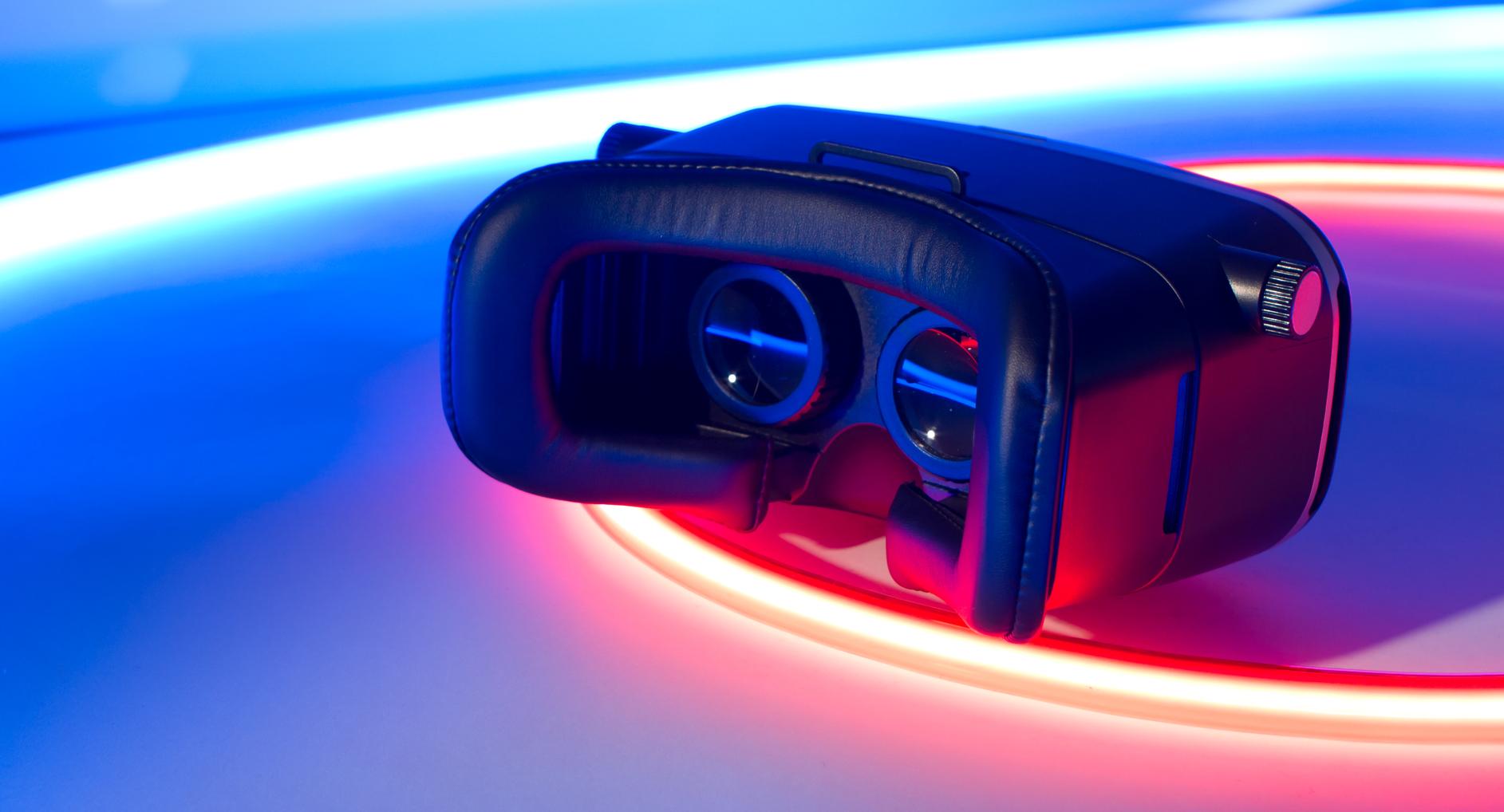
Before you head into the 3D world, we recommend you do some research into a high-quality VR headset. Unlike other headsets, VR headsets require a significant initial investment, so before you buy one, ensure that it matches your requirements. Consider factors such as resolution, field of view, and refresh rate, which can greatly enhance your VR experience.
We recommend the Oculus Rift and the HTC Vive. The Oculus Rift was the first VR headset to jumpstart this phenomenon and remains one of the best VR headsets in the market. The HTC Vive is a little pricier, but its Lighthouse program that enables you to move around the house through the use of sensors has become a highly appraised feature. Additionally, both headsets have access to a wide array of VR content, ensuring that you'll always have something new to explore.

Not every computer is prepared for VR technology. Both Oculus and HTC run a test on their websites to determine if your PC is compatible with VR technology. Ensuring your PC meets these requirements is crucial for an optimal experience.
The Oculus Rift requires:
- NVIDIA GTX 970 / AMD R9 290 equivalent or greater
- Intel i5-4590 equivalent or greater
- 3x USB 3.0 ports plus 1x USB 2.0 port
- HDMI 1.3 video output
- 8+GB of RAM
- Windows 7 SP1 or newer
The HTC Vive requires:
- NVIDIA GeForce® GTX 970 / AMD Radeon™ R9 290 equivalent or greater
- Intel i5-4590 / AMD FX 8350 equivalent or greater
- 1x USB 2.0 or greater port
- HDMI 1.4 or DisplayPort 1.2 or newer
- 4GB+ of RAM
- Windows 7 SP1 or newer
It should be noted that having a high-performance graphics card and a fast processor will significantly enhance the quality of your VR experience, reducing latency and ensuring smoother gameplay.
Before you install your VR headset, and to prevent any accidents, move aside large furniture items and clear your desk from bulky objects to empty out the space. Creating a safe and spacious area is essential to prevent any mishaps while you're immersed in the virtual world, especially if your VR experience involves physical movement.
Then unpack all of your base stations. These must be placed around the room at above head height and connected to an outlet using your power cords. These base stations will sense your movements, so you need to ensure they are not blocking each other's view range. Place them above bookshelves or use additional mounting hardware. Proper placement of these stations is vital for accurate tracking, which greatly affects the immersion and responsiveness of your VR experience.
To connect your VR headset to your computer, you will first connect the linkbox to your computer using the HDMI cable. Then connect your linkbox to your computer using the USB cable. Finally, connect your VR headset to the linkbox with the specially designed cable. If you have a pair of earbuds, you can also connect them to the VR headset. Using high-quality headphones can further enhance the immersive experience by providing superior sound quality.
If your VR headset comes with controllers, make sure you connect these to your PC using the USB cables enclosed. Properly synced controllers are crucial for an interactive and enjoyable VR session.

The final step is to download and install the software program. You will be asked to create an account during the process to have access to thousands of games and other virtual reality experiences. Many platforms also offer regular updates and new content releases, ensuring that your VR experience remains fresh and exciting.
Furthermore, consider joining online communities or forums dedicated to VR enthusiasts. These platforms can provide valuable tips, game recommendations, and troubleshooting advice, enhancing your overall VR experience.
If you want to read similar articles to How to Use a VR Headset on PC, we recommend you visit our Software category.